Website Contact Form Problems: Are You Losing Leads?
- News & Notes
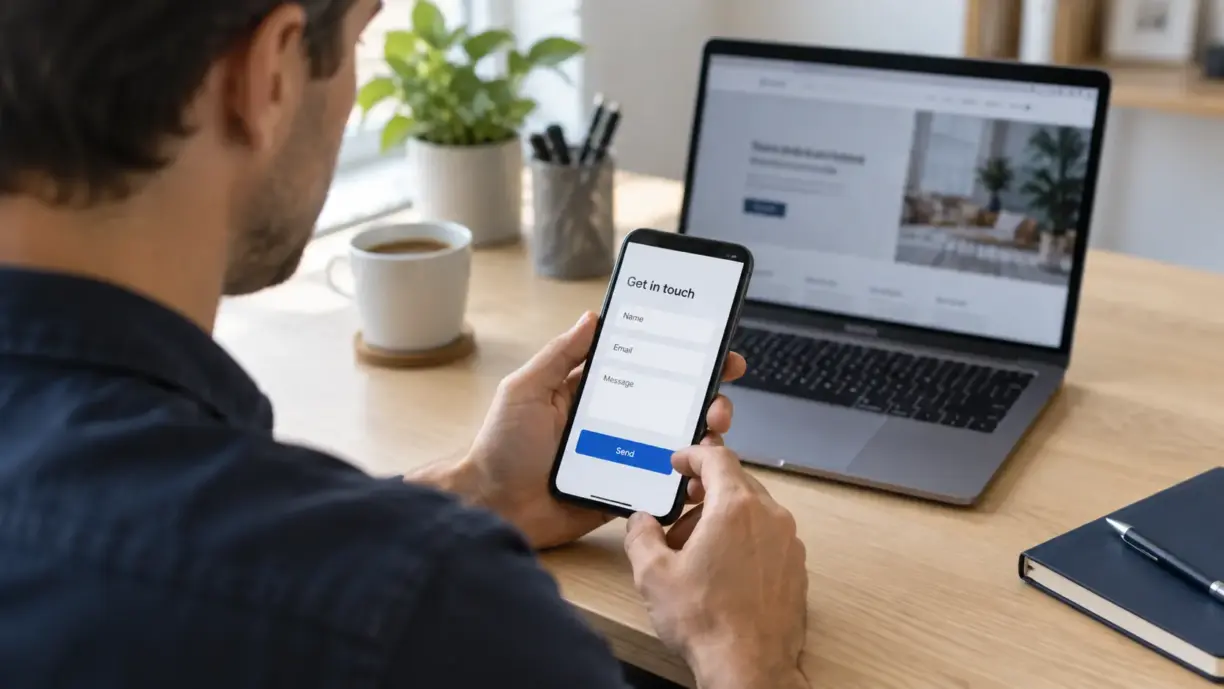
Is Your Website Losing Leads Without You Knowing?
Website contact form problems can prevent a ready-to-buy customer from reaching your team. The fastest first check is simple: submit a test inquiry, confirm it reaches the right place, and reply to it.
That checks more than whether the form looks good. It checks whether your business can turn a website visit into a conversation.
When inquiries slow down, it makes sense to review traffic, search rankings, and advertising. But first, check the path you already ask customers to use. A broken form or missed alert can leave you paying to attract people your team never gets to speak with.
September is a useful time for this review, before fourth-quarter campaigns and next year’s budget decisions. Here is how to find the weak points.
1. Spot website contact form problems on a real phone
Start on a service page, rather than going straight to your contact form. Can a first-time visitor see what to do next?
Then follow that path on your phone. Use the public website while logged out of any admin account. Check whether cookie notices, chat tools, or other page elements cover the form or its button.
Look for practical friction:
- Fields that are hard to read or tap.
- Required questions that do not fit every customer.
- Phone number rules that reject a reasonable format.
- File uploads that fail without a useful explanation.
- A send button that stays disabled with no clear reason.
Ask only for information needed at that stage. A short service inquiry may need a name, contact method, and brief description. A detailed estimate may need more. The right form supports the decision the visitor is ready to make.
Test on desktop as well. If one device works and another fails, record the device, browser, and page address for your developer.
2. Check errors and confirmation messages
Deliberately leave a required field blank. Then try an incomplete email address. Does the form explain the problem near the field that needs attention?
Clear feedback matters. W3C’s guidance calls for understandable error messages and confirmation when a task succeeds. A visitor should know how to correct a mistake without guessing. [1]
Now send a valid test. Look for an obvious confirmation and a realistic explanation of what happens next.
For example: “Thanks. Your request has been received. Our team will respond within one business day.” Use that wording only if your team can meet it.
Avoid promising an instant answer when nobody monitors the inbox after hours. For time-sensitive services, display another suitable contact option and its hours.
The confirmation should reflect an accepted submission. Your developer should also check that failures do not trigger the same success message.
3. Trace a missing inquiry through the system
If your website is not sending emails, separate three questions: Was the submission accepted? Was it saved? Did the notification arrive?
Those are different steps. Some form setups store entries; others rely on email unless storage is added. Ask your developer what your site actually does.
For WordPress, the official documentation states that a successful result from its mail function does not prove the recipient received the message. [2] A green success notice is not a substitute for checking the inbox.
Use a test label with the date and time so the request is easy to find. Then check:
- The intended inbox, including junk folders and any company email quarantine.
- The website’s entry list, if one is configured.
- The customer management system, if connected.
- The recipient address set on that particular form.
If an entry exists but the alert is missing, ask your web team to inspect the mail setup and delivery records. If the entry is also absent, start with form processing and any connected services.
Repeat this for separate quote, contact, and campaign forms. One working form does not confirm that all the others work.

4. Keep spam controls from becoming another obstacle
A flood of junk inquiries needs attention. But making a form harder to complete can also create problems for real customers.
After any spam-control change, send valid test requests from both phone and desktop. Check that the challenge loads, completes, and lets the request through.
Ask your developer to review the available filtering options for your form setup. The aim is to reduce junk while preserving a clear path for legitimate inquiries. No filter should be treated as a promise of zero spam.
If customers report failed attempts, collect the page address, approximate time, device, and error message. A screenshot is useful. Avoid repeatedly guessing at settings without checking what actually failed.
Keep another contact route visible where appropriate. Someone who cannot finish a form should still have a way to reach your business.
5. Make the lead follow-up process clear
Consider a simple example: a homeowner requests an estimate, and the email reaches three people. Each assumes someone else will answer. The technology worked, but the inquiry still stalled.
Assign a primary owner and a backup. Decide how they mark an inquiry as answered and where the next action is recorded.
A shared inbox may be enough for a small team. Higher volume, several locations, or multiple service lines may call for a customer management system with assignments and reminders. Choose based on the work you need to track.
Test the reply path, too. Make sure clicking Reply sends the answer to the prospective customer, rather than a website notification address.
To judge whether fixes help, compare valid inquiries received, inquiries answered within your goal, and qualified conversations. Keep test entries and spam separate. Raw form counts alone cannot tell you how many useful leads your website produced.
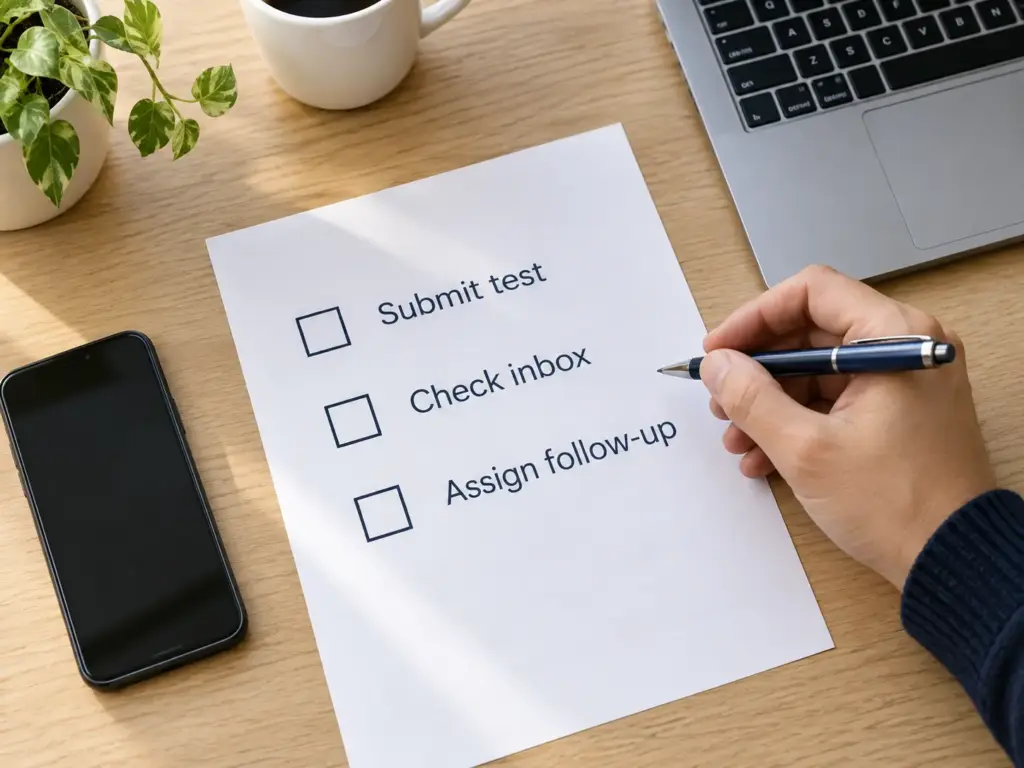
6. Run a website lead check before your next campaign
Use this checklist for each important inquiry form:
- Find it from a relevant service or campaign page.
- Complete it on a phone and a desktop.
- Check a required-field error and correct it.
- Submit a clearly labeled test request.
- Read the confirmation and check its response promise.
- Find the email and any saved submission record.
- Confirm all contact details and message text arrived intact.
- Reply and verify that the test sender receives the response.
- Confirm who owns follow-up and who provides backup.
Record any failure with the page URL and test time. Retest after a fix. Make the same check part of significant website, form, or email changes, and repeat it on a schedule that fits your business.
Passing these checks will not explain every drop in inquiries. If the full path works, review traffic quality, search visibility, the offer, and seasonal demand next. The test gives you a clearer starting point.
A lead is only useful when your team receives it and acts on it. Before increasing your marketing spend, make sure that path holds up.
Net-Craft has built websites and apps since 2000. From our Scottsdale base, we help Arizona businesses and clients beyond the state improve their websites and business systems. If your form, email alerts, or follow-up tools need attention, contact Net-Craft to discuss a review.
- Back
- Next